In the following content, "user"
refers to those who can access the IT150 Network Camera and
"administrator" refers to the supervisor who can configure the IT150 Network
Camera and grant users access.
When completing the hardware installation,
administrators need to run the Installer
program included in the product CDROM to locate the newly installed IT150
Network Camera. Any IT150 Network Camera standby for software installation will
be captured by the Installer program. Therefore there may be several entries
shown in the window. Administrators may differentiate the IT150 Network Camera
with the serial number and click on the entry with "Assigned" field
labeled "No" to perform software installation. The serial number is
printed on the labels on the carton and the rear panel of the IT150 Network
Camera’s body.
 The IP address shown in "Current IP Address" field depends
on the local network. It may get from the DHCP server for the administrator's
reference. If there is no DHCP server, administrators can choose any neighbor
IP address of the PC. The Installer program will check the IP address
automatically; there will be a warning message if it conflicts with others.
The IP address shown in "Current IP Address" field depends
on the local network. It may get from the DHCP server for the administrator's
reference. If there is no DHCP server, administrators can choose any neighbor
IP address of the PC. The Installer program will check the IP address
automatically; there will be a warning message if it conflicts with others.

If administrators want to use another IP
address, modify the IP address text field.
If the administrator wants to fix the IP
address of the unit, check the option "Use this IP whenever system
boots" to skip future installation procedures. Otherwise the unit will
need installation whenever it is restarted.
 If the IP is not taken by another network device in the network, the
Installer program will continue to setup. Otherwise another message window will
warn that the assigned IP conflicts.
If the IP is not taken by another network device in the network, the
Installer program will continue to setup. Otherwise another message window will
warn that the assigned IP conflicts.
In this case, administrators should ask the
network supervisor for a vacant IP address.
After clicking on  in the successful dialog, the
"Assigned" field will be labeled "Yes". Administrators
should keep the address information for users’ request.
in the successful dialog, the
"Assigned" field will be labeled "Yes". Administrators
should keep the address information for users’ request.

If there is any error dialog rather than “Set
IP OK”, please check the next page.

Administrators may click directly on  to access the newly installed server in
the default browser.
to access the newly installed server in
the default browser.
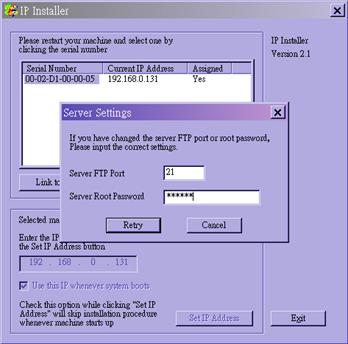
When administrators choose “Use this IP
whenever system boots”, the local FTP server port and root password of the IT150
Network Camera will be utilized.
If they have been changed prior to the
installation, a confirmation window will pop out to request correct settings.
After entering the correct settings, press “Retry”.

If the “Server FTP Port” or “Server Root Password” is lost,
click “Cancel” to exit. In this case, the IP address of the IT150 Network
Camera will still be installed though it is not fixed for further reboot. If
the root password is correct, administrator can log in to browse the
correct local FTP server port in
the network settings.
Otherwise refer to Appendix A Troubleshooting
to restore factory default settings and then use the installer to install
again.
Once
installation is complete, administrators should proceed to the next section
"First access to the IT150 Network Camera " for necessary checks and
configurations.
Although the IT150 Network Camera already
can be connected after software installation from Local Area Network,
administrators should complete the network settings in the configuration page
including the correct subnet mask and IP address of gateway and DNS. Ask for
the network administrator or Internet service provider for the detail
information. By default the IT150 Network Camera will need administrator's
installation every time it reboots. If the network settings are sure to work
all the time, disable the install option. Refer to “Network settings” in system
configuration page for details. Once any setting is entered incorrectly and
thus hangs the IT150 Network Camera, restore the factory settings according to
the steps in troubleshooting.
Since the
administrator’s password is blank by default, the IT150 Network Camera will not
ask for any password. However the administrator should change the password as
soon as possible to protect from network intruders. Once the administrator’s
password is saved, the IT150 Network Camera always needs user name and password
before access. The administrator can setup at most twenty user accounts. Each
user is able to access the IT150 Network Camera except for system
configuration. Some critical functions are limited only for administrators such
as system configuration, user administration and software upgrade. The user
name of the administrator is assigned to “root” permanently. Once the password
is changed, the browser will display an authentication window to ask for the new password. There
is no way to discover administrator’s password. If the password is forgotten,
only restoring factory defaults can help.
After opening the Web browser and typing in
the URL of the IT150 Network Camera, a dialogue window may pop up to request a
username and password except that the administrator does not save any password.
Upon successful authentication, the main page will display like the figure
below.
In the figure, the foreground is the login
window and the background shows the message when authentication fails. The user
may check the option to save the password for future convenience.

If it is initial access to the IT150 Network
Camera in Windows, the web browser may prompt for permission to install a new
plug-in that is provided by the IT150 Network Camera. Prompt or not and the
prompt message depend on the Internet security settings of user’s PC or
notebook. The highest security level may prohibit any installation and execution
attempt even the plug-in is safe. This plug-in has been registered for
certificate and is used to display the motioned pictures in the browser. Users
may click on  to proceed. If the web browser does not
allow the user to install, check the Internet security option to lower security
levels or contact network supervisors.
to proceed. If the web browser does not
allow the user to install, check the Internet security option to lower security
levels or contact network supervisors.

There is a
logo image shown in the upper left corner. It can link to other web sites or
resources depending on the settings in configuration. The assigned caption and
system date/time will display in the banner above the image window. There might
be some windows enclosed by red lines shown in the image as soon as motion is
detected in the related windows. Click on the configuration link to the right
of the image window to enter the configuration page.
If
it is the first access to “Connection type” page in Windows, the web
browser will ask to install a new plug-in that is provided by the IT150 Network
Camera. This plug-in has been registered for certificate and is used to change
the parameters at the client side. Users may click on to install the plug-in. If the web
browser does not allow the user to install, check the Internet security to
lower the security level or contact network supervisors.
There
are two settings for the client side. One is “Media Option” for users to
determine if the audio should be muted. The other is “Protocol Option”
to choose the connection protocol between client and server. There are three
protocols to optimize your usage - UDP, TCP and HTTP. With
UDP protocol, audio and video streams can be more real-time. But some packets
may be lost due to network burst traffic and images will be obscure. If TCP
protocol is selected, packet loss would not occur and video display will more
accurate. But the real-time effect is worse than UDP protocol. If the network
is protected by a firewall and it opens HTTP port (80) only, HTTP protocol must
be selected. In this mode, audio will not be sent and you can see the video
only. If you have no special needs and no idea to choose one among them, simply
choose UDP. Generally the client will automatically try these protocols by the
following order, UDP → TCP → HTTP. After the client connects to the IT150 Network Camera
successfully, “Protocol Option” will show the working protocol. The
chosen protocol will be recorded in the user's PC and used for next connection.
If the network environment is changed or users want to let web browser detect
again, select UDP manually to save and then return HOME to connect again.

<url> http://<IT150Network Camera>/protocol.html
<IT150
Network Camera> is the domain name or original IP address of the IT150 Network
Camera.
The
best performance means the image refresh rate should be the fastest as possible
and the video quality should be the best as possible at the lowest network
bandwidth as possible. Three factors, “Maximum frame rate”, “Fix bit
rate”, and “Fix quality” in the Video configuration page, are
correlative to the performance.

My priority is
real-time motioned images
To
achieve the real-time visual effect, the network bandwidth should be large
enough to transmit 20 image frames or more. If you are in the broadband network
over 1 Mbps, you can fix the bit rate to 1000Kbps or 1200Kbps, or fix the
quality to achieve the maximum frames. The maximum frame rate is 25 in 50Hz
system and 30 in 60Hz system. If your network bandwidth is more than 384Kbps,
you can fix the bit rate according to your bandwidth and set the maximum frame
rate to 25 or 30. If the images vary dramatically in your environment, you may
slow down the maximum frame rate to 20 to decrease the transmitted data for
better video quality since human could not easily tell the difference between
20 and 25 or 30 frames per second. If your network bandwidth is below 384 Kbps,
you should fix the bit rate according to your bandwidth and try out the best
performance by tuning the maximum frame rate. The larger frame rate in slow
network will blur the images. You may also try to choose “Half” in size option
for better images or “Halfx2” for larger image size. Note that even you have
well tuned the parameters, the performance may still vary from person to person
when multiple users view at the same time. Because the network has burst
constraint and everyone’s environment is not the same, any poor connection will
drop the normal performance.
My priority is
clear identification for each image
To
have the best video quality, you should fix the quality to detailed or
excellent and tune the maximum frame rate to suit for your network bandwidth.
If you get some broken pictures in slow network, you can choose TCP protocol in
“Connection type” for more accurate transmission but the received images may
have certain time delay. Note that any slow connection in multiple users will
drop the proper performance.
I want to
compromise between real-time and clear images
If
you have a broadband network, choose fix quality to normal or better rather
than fix bandwidth. Otherwise fix the bandwidth according to your actual
network speed and set the frame rate to 30. If the images look bad, select the
lower frame rate above 15. If the images are not improved, select the lower
bandwidth.


Protect the IT150
metwork camera by passwords
The
IT150 Network Camera is shipped without any password by default. That means
everyone can access the IT150 Network Camera including the configuration as
long as the IP address is known. It is necessary to assign a password if the IT150
Network Camera is intended to be accessed by others. Type a new word twice in 1 to enable protection. This
password is used to identify the administrator. Then add an account with user
name and password for your friends in 2. The IT150 Network Camera
can provide twenty accounts for your valuable customers or friends. Each
account identifies the access right rather than the real visitor. That allows
multiple visitors share the same account of different level. An option to access DI/DO is provided for
each account. Some users may need to prohibit from controlling your attached
devices. You may delete some users from 3.
More flexible
options for viewers 4
The
first option allows anyone uses “demo” as the user name to view without
password. Administrators can also decide if more viewers are allowed to watch
the video if the viewers exceed the limit. The overloaded viewers will have
snapshot mode instead.
How to change the
subject text of homepage
1.
Click on “Configuration” on homepage,
2.
Change the text in “Host name”,
3.
Click on “Save” button.


How to change the
font color
1.
Click on “Configuration” on homepage,
2.
Click on “Homepage layout” at the left column,
3.
Find “Font color” and pull down the list to choose any color you like,
4.
Click on “Save” button.
*
The font color is better to contrast with the background.
How to change the
background
1.
Click on “Configuration” on homepage,
2.
Click on “Homepage layout” at the left column,
If
you want to display simple color without any image,
3.
Find “Background graph” and choose “blank”,
4.
Find “Background color” and pull down the list to choose any color you like,
5.
Click on “Save” button.
*
The background color is better to contrast with the font.
If
you want to use the image from another web site as background,
3.
Find “Background graph” and choose “Url”,
4.
Type the URL of the image on the Internet in the edit box, for example, “http://www.intellisystem.it/img/logo.gif”,
5.
Click on “Save” button.
If
you want to change the default background image stored in the IT150 Network
Camera,
3.
Find “Background graph” and choose “default”,
4.
Click on “Save” button,
5.
Prepare an image file with size less than 131000 bytes and rename it to
wallppr.jpg,
6.
Open an FTP client program and connect to the IT150 Network Camera. The user
name and password is as same as the administrator’s.
7.
Transfer wallppr.jpg in local folder to the IT150 Network Camera,
8.
Close the FTP program and reload the homepage of the IT150 Network Camera.
How to change the
image logo at the upper left corner of homepage
1.
Click on “Configuration” on homepage,
2.
Click on “Homepage layout” at the left column,
If
you want to remove any logo,
3.
Find “Logo graph” and choose “blank”,
4.
Click on “Save” button.
If
you want to use the image from another web site as logo,
3.
Find “Logo graph” and choose “Url”,
4.
Type the URL of the image on the Internet in the edit box, for example, “http://www.intellisystem.it/img/logo.gif”,
5.
Click on “Save” button.
If
you want to change the default logo stored in the IT150 Network Camera,
3.
Find “Logo graph” and choose “default”,
4.
Click on “Save” button,
5.
Prepare an image file with size less than 65000 bytes and rename it to
logo.gif,
6.
Open an FTP client program and connect to the IT150 Network Camera. The user
name and password is as same as the administrator’s.
7.
Transfer logo.gif in local folder to the IT150 Network Camera,
8.
Close the FTP program and reload the homepage of the IT150 Network Camera
If
you want to add hyperlink to the logo image,
3.
Find “Logo link” and type the hyperlink in the edit box, for example,
http://www.intellisystem.it,
4.
Click on “Save” button.
How to design my
own homepage to replace the current one
1.
Prepare your own homepage with size less than 65000 bytes and rename it to
user.htm,
2.
Insert the html codes of video object, the bold Italian text in the following
example, into the appropriate position in user.htm. Note that the codes of
video object must be copied exactly the same including the letter case.
|
|
****** Intellisystem Technologies -
Example homepage begin ******
<html>
<head>
<title>Example – custom
homepage</title>
</head>
<body
background="/pic/wallppr.jpg">
<p>
<a href="/setup/config.html">
<img src="http://www.intellisystem.it/img/logo.gif"
align="left" width="100" height="29">
</a>
<font size="7" face="Comic Sans MS"
color="#FF0000">
IT 150 Demo Page
</font>
</p>
<p align="left">
<!-- Copy the next bold line to
where you want to show the image coming from IT150. This line is remark
only and is hidden on homepage. //-->
<OBJECT
ID=VAMCtrl></OBJECT>
</p>
</body>
</html>
****** Example homepage end ******
|
|
3.
Open an FTP client program and connect to the IT150 Network Camera. The user
name and password is as same as the administrator’s.
4.
Transfer user.htm in local folder to the IT150 Network Camera,
5.
Close the FTP program and reload the homepage of the IT150 Network Camera,
6.
Click on “Configuration” on homepage,
7.
Click on “Homepage layout” at the left column,
8.
Check “Use the customized homepage”.
9.
Click on “Save” button and return to homepage.
*
The user.htm only provides plain text content that scripts and URL of external
resources can be used to adorn the homepage. Refer to tutorials of writing HTML
and scripts.
 If the customized homepage goes
wrong and cannot display, link to the “Homepage layout” page,
“http://<IP address of IT150 Network Camera>/setup/layout.html”, to
disable “Use the customized
homepage”. If the customized homepage goes
wrong and cannot display, link to the “Homepage layout” page,
“http://<IP address of IT150 Network Camera>/setup/layout.html”, to
disable “Use the customized
homepage”.
|
|
Show off to my
friends – mid-scale service
The
IT150 Network Camera can allow ten visitors on-line simultaneously. Just follow
the installation, focus the IT150 Network Camera on any view you would like
friends to share and tell them the address to type in the web browser. Of
course you have to maintain your friend list in the security configuration page
to filter unexpected strangers. No need to have the geeks’ skill and
equipments, no need to find suitable software.
Show my products
or scenic spot for e-business – large-scale service
If
the visitors may exceed the account limit, the IT150 Network Camera can supply extra
viewers the homepage of snapshot mode that will have the JPEG still image
refreshed periodically and automatically. It needs script function supported by
the web browser.

1.
Click on “Configuration” on homepage,
2.
Click on “Security” at the left column,
3.
Go to the page bottom and check “Allow more viewers with snapshot mode”,
4.
Set the snapshot interval to refresh the still image automatically. The longer
the snapshot interval is, the better the snapshot mode works for more viewers.
If
you want to expand the viewers tremendously, host a powerful web site that can
handles large network traffic and attract eyeballs with the picture refreshed
often by the IT150 Network Camera.
If
the web space has FTP service,
Setup
the IT150 Network Camera as an FTP client to upload the pictures. The advantage
is the access of the IT150 Network Camera is independent of the viewers to
ensure the quality.

1.
Click on “Configuration” on homepage,
2.
Click on “Network” at the left column,
3.
Fill the FTP related settings including server, user name and password, as well
as the upload path if specified by the web space,
4.
Click on save and wait for system restart,
5.
Click on “Application” at the left column,
6.
Select the weekday and daily schedule you want to upload the pictures,
7.
Select “Sequential operation” and set the interval,
8.
Select FTP without date time suffix as the upload method and click on save,
9.
The image file uploaded to the web space is named “video.jpg”. Check if the
file is successfully uploaded to the correct folder,
10.
Prepare a homepage with the embedded image reference to the image file uploaded
via FTP in advance.
If
the web space has no FTP service,
An
auto-refresh homepage can be used to periodically poll the newest image from the
IT150 Network Camera. It is mostly useful in the free web space provider as
their FTP service may be limited to use.
1.
Prepare an auto-refresh homepage like the following example. The URL of image
is http://“IP address of the IT150 Network Camera”/cgi-bin/video.jpg. Modify
the IP address according to your IT150 Network Camera. Also define the refresh
interval according to your network bandwidth for best effect. Too frequent
refresh rate for a great deal of visitors may overload the IT150 Network Camera
and retard the response.
****** Intellisystem Technologies -
Example homepage begin ******
<html>
<head>
<title>Example - auto
refresh</title>
</head>
<body
background="/pic/wallppr.jpg">
<p align=left>
<font size="7" face="Comic Sans MS"
color="#FF0000">
IT150 Demo
</font>
</p>
<p align=left>
<!-- Begin of scripts to auto
refresh the image. Change the IP address in the image URL and refreshrate
if necessary. //-->
<script language=javascript>
var
image="http://217.133.4.176:76/cgi-bin/video.jpg";
//IMAGE URL
var refreshrate=5;
//SECONDS BETWEEN REFRESH
var imgwidth=352;
//IMAGE WIDTH
var imgheight=240;
//IMAGE HEIGHT
function refresh(){
document.images["pic"].src=image+"?"+new
Date();
setTimeout('refresh()',
refreshrate*1000);}
document.write('<img
src="'+image+'" height="'+imgheight+'"
width="'+imgwidth+'" name="pic">');
if(document.images)window.onload=refresh;
</script>
<!-- End of scripts to auto refresh
the image. //-->
</p>
</body>
</html>****** Example homepage
end ******
|
|
 Administrators can combine
options on the application page to perform many useful security applications.
There are two trigger sources coming from attached devices and/or motion
detection. There are also two kinds of actions responding to events including
uploading snapshots over internet and driving attached devices. To upload the
snapshots, users can choose wither email or FTP according to user’s needs. Both
e-mail and FTP use the network settings on the network page. Refer to the
definition section for detail configuration.
Administrators can combine
options on the application page to perform many useful security applications.
There are two trigger sources coming from attached devices and/or motion
detection. There are also two kinds of actions responding to events including
uploading snapshots over internet and driving attached devices. To upload the
snapshots, users can choose wither email or FTP according to user’s needs. Both
e-mail and FTP use the network settings on the network page. Refer to the
definition section for detail configuration.

1.
Click on “Configuration” on homepage,
2.
Click on “Application” at the left column,
3.
Check the weekdays as you need and give the period of "Snapshots begin"
time and "Snapshots end" time to monitor the trigger
conditions every day,
4.
Check the “Event operation”. The
trigger condition can be set to detected motion or status of the attached
device,
5.
Set the delay before detecting next
event to avoid continuous false alarms following the original event,
6.
Set the delay to take snapshots after
event to capture the direction of the moving objects,
Send snapshots
when motion is detected
If
no external sensor is available, administrators can utilize the built-in motion
detection to monitor any abnormal movement and then send emails with snapshots
included for security check.
7.
Click on “Motion detection” at the
left column,
8.
Check “Enable motion detection”,
9.
Click on new to have a new window to monitor video,
10.
Type in a name to identify,
11.
Use mouse to drag the window corner to resize or the title bar to move,
12.
Tune the “Sensitivity” and “Percentage” according to the local
environment. The higher sensitivity, the easier motion is detected. The higher
percentage, the more difficult to detect small moving objects,
13.
Click on save will enable the activity display. Green means the motion in the
window is under the watermark set by administrators and red means it is over
the watermark,

14.
Click on “Application” at the left
column,
15.
Check the window name set in step 10,
16.
Check “Upload snapshots while motion detected”,
If
emails with snapshots are preferred,
17.
Check “Send snapshots by email”,
18.
Click on save to validate.
If
emails with snapshots are preferred,
17.
Check “Send snapshots by email”,
18.
Click on save to validate.
Customers
can obtain the up-to-date software from our web site. An easy-to-use Upgrade
Wizard is provided to upgrade the IT150 Network Camera with some clicks. This
function is open to administrators only. To upgrade the system, follow the
procedures below.
1.
Download the firmware file named FLASH.BIN from the appropriate product folder.
2.
Run the Upgrade Wizard and proceed by the prompts. Refer to the instructions of
Upgrade Wizard for details.
3.
The whole process will finish in couple minutes and automatically restart the
system.
|
|
 If the power fails during the writing
process of Flash memory, the program in the memory of the IT150 Network
Camera may be destroyed permanently. If the IT150 Network Camera cannot
restart properly, ask the dealer for technical service. If the power fails during the writing
process of Flash memory, the program in the memory of the IT150 Network
Camera may be destroyed permanently. If the IT150 Network Camera cannot
restart properly, ask the dealer for technical service.
|
|

System configuration can be accessed only
by administrators. Each category in the left column will be explained in the
following pages. The bold texts are those specific phrase on the option pages.
Administrators may type the URL below the figure to directly enter the frame
page of configuration. If administrators also want to set certain options
through the URL, read the reference appendix for details.

<Url> http://<IT150Network
Camera>/setup/config.html
<IT150 Network Camera > is the domain
name or original IP address of theIT150 Network Camera.
"Host name", the text will display as title at the top of the main page.
“Turn off the LED indicator”, check this option to shut off the LED beside the lens. It can
prevent others from observing the operation.
"Keep current date and time", click to reserve the current date and time of the IT150 Network
Camera. An internal real-time clock maintains the date and time even when the
power of the system is turned off.
"Sync with computer time", synchronize the date and time of the IT150 Network Camera with the
local computer. The read-only date and time of PC is displayed as updated.
“Manual”,
adjust the date and time according to what entered by administrators. Notice
the format in the related field while typing.
“Automatic”,
synchronize with the NTP server over the Internet whenever the IT150 Network
Camera starts up. It will fail if the assigned timeserver cannot be reached.
“NTP server”,
assign the IP address or domain name of the timeserver. Leaving the text box
blank will let the IT150 Network Camera connect to default timeservers.
"Time zone", is used to adjust the hour get from timeservers for local
settings.
Remember to click on  to validate changes. The later click on , the
less accurate time set by manual.
to validate changes. The later click on , the
less accurate time set by manual.
“Root password”, to change the administrator’s password, type the new password in
both text boxes identically. What is typed will be displayed as asterisks for
the security purpose. After pressing  , the
web browser will ask administrators for the new password for access.
, the
web browser will ask administrators for the new password for access.
“Add user”,
type the new user's name and password and press  to insert the new entry. The new user
will display in the user name list for deletion. There are maximum twenty user
accounts. Each user can have privilege to “Permit to access DI/DO”.
to insert the new entry. The new user
will display in the user name list for deletion. There are maximum twenty user
accounts. Each user can have privilege to “Permit to access DI/DO”.
“Delete user”, pull down the user list to find the user name and press  .
.
“Allow ‘demo’ account to view”, click to
permit who typing “demo” as user name while authentication. No password is
needed for demo account. Note that demo account is restricted to view only.
“Allow
more viewers with snapshot mode” can let more
viewers than limited account to watch the video. However the video is a still
image automatically refreshed by the interval defined below. This feature must
be supported by java script capability of web browsers.
“Snapshot
interval” defines the refresh rate of the still
image in the homepage seen by overloaded viewers.
Any change made to this page will make the
system restart to validate. Make sure every field is correctly typed before
clicking on .
"Reset IP address at next
boot", the default status is checked to
eliminate incautious mistakes during installation. However it is very annoying
to perform software installation whenever the IT150 Network Camera starts. Once
the network settings, especially the IP address, are correct, uncheck this
option to use permanently. This option can also be disabled using the Installer
program. Once the option is disabled, the IT150 Network Camera will skip
installation at the next boot and the Installer program will no longer find the
installed units. That implies that the IT150 Network Camera cannot be accessed
if no one remembers the IP address, except by restoring factory default
settings. However, with this option disabled the IT150 Network Camera can
automatically operate normally after restarting in case of losing power.
“IP address”,
it is necessary for network identification.
“Subnet mask”, it is used to determine if the destination is in the same subnet.
The default value is “255.255.255.0”.
“Default router”, it is the gateway used to forward frames to destinations in
different subnet. Invalid router setting will fail in transmission to
destinations in different subnet.
“Primary DNS”, primary domain name server who translates names to IP addresses.
“Secondary DNS”, secondary domain name server to backup the primary one.
“SMTP(mail) server 1”, the domain name or IP address of external email server.
“Recipient email address 1”, the email address of recipients for snapshots or log file.
Multiple recipients must be separated by semicolon, ‘;’.
“SMTP(mail) server 2”, the domain name or IP address of another email server once the
previous server is unreachable.
“Recipient email address 2”, the email address of recipients for the backup server.
“Return email address”, The return email address once the mails fail to send out.
“Local FTP server port”, it can be other than default port 21. After changed, external FTP
client program must change the server port of connection accordingly.
“1st FTP server”, the domain name or IP address of external FTP server. The
following user settings must be correctly configured for remote access.
“1st FTP user name”, granted user name on the external FTP server.
“1st FTP password”, granted password on the external FTP server.
“1st FTP remote folder”, granted folder on the external FTP server. The string must conform
to the external FTP server. Some FTP server cannot accept preceding slash
symbol before the path if no virtual path mapping. Refer to the instructions of
external FTP server for details. The folder privilege must be open for upload.
“Primary FTP passive mode”, if the IT150 Network Camera is located inside the network
protected by firewall, data connection for FTP may be prohibited. Passive mode
FTP can bypass the rule and succeed to upload snapshots. If the passive mode is
selected, the IT150 Network Camera can automatically attempt for active mode if
the external FTP server does not support passive mode.
“2nd FTP server”, the domain name or IP address of external FTP server.
“2nd FTP user name”, granted user name on the backup FTP server.
“2nd FTP password”, granted password on the backup FTP server.
“2nd FTP remote folder”, granted folder on the backup FTP server.
“Secondary FTP passive mode”, passive mode setting for the backup FTP server.
“Http port”,
it can be other than default port 80. Once the port is changed, users must be
informed for successful connection. For instance, when the administrator
changes the HTTP port of the IT150 Network Camera whose IP address is
192.168.0.100 from 80 to 8080, users must type in the web browser
“http://192.168.0.100:8080” instead of “http://192.168.0.100”.
“Control channel port”, it can be other than default port 5001 to cooperate with the port
opened by the firewall.
“Audio channel port”, it can be other than default port 5002 to cooperate with the port
opened by the firewall.
“Video channel port”, it can be other than default port 5003 to cooperate with the port
opened by the firewall.
“Improve audio quality in
low bandwidth environment”, if the IT150 Network
Camera works in versatile or low network bandwidth environment, users can check
this option to improving audio quality by sacrificing some real-time
synchronization.
Some invalid settings may cause
system failure to respond. Change the configuration only if necessary and
consult with network supervisor or experienced users for correct settings.
Once the system is lost contact, refer to Appendix A for reset and restore
procedures.
|
|
“Text on video”, the text will be displayed in the black bar above the video window
with a timestamp. The timestamp is captured from date and time of the IT150 Network
Camera that is maintained by a built-in real-time clock.
“Color”,
select either one for color or monochrome video display.
"Size", there are three options for two video sizes. “Half” has
quarter size of “Normal”.
“Half x 2” has the same video size as “Normal” but has worse
quality. However it consumes less network bandwidth.
“Power line frequency (for fluorescent
light)”, the fluorescent light will flash according
to the power line frequency that depends on local utility. Change the frequency
setting to eliminate uncomfortable flash image when the light source is only
fluorescent light.
There are three dependent parameters
provided for video performance adjustment. "Maximum frame rate",
it limits the maximal refresh frame rate that can be combined with the "Video
quality control" to optimize the bandwidth utilization and video
quality. If users want to fix the bandwidth utilization regardless of the video
quality, choose "Fix bit rate" and select the desired
bandwidth. The video quality may be poor in order to send maximal frames within
the limited bandwidth when images change drastically. Consequently to ensure
the video detail (quantization rate) regardless of the network, it will utilize
more bandwidth to send the maximal frames when images change drastically.
"Flip", vertically rotate the video.
"Mirror", horizontally rotate the video. Check both if the IT150 Network
Camera is installed upside down.
“White balance”, choose the suitable option for best color temperature.
 ,
click this button to pop up another window to tune "Brightness", “Contrast”, “Hue” and "Saturation"
for video compensation. Each field has eleven levels ranged from -5 to +5. The
user may press
,
click this button to pop up another window to tune "Brightness", “Contrast”, “Hue” and "Saturation"
for video compensation. Each field has eleven levels ranged from -5 to +5. The
user may press  to fine-tune the image. When the image is
O.K., press
to fine-tune the image. When the image is
O.K., press  to memorize the image settings.
  can be clicked to recall the original
settings without changes.
can be clicked to recall the original
settings without changes.

“Enable motion detection”, check this option to turn on the motion detection.
 ,
click on this button to add a new window. At most three windows can exist at
the same time. Use the mouse to drag the window frame to resize or the title
bar to move. Clicking on the ‘x’ at the upper right corner of the window can
delete the window. Remember to save to validate the changes.
,
click on this button to add a new window. At most three windows can exist at
the same time. Use the mouse to drag the window frame to resize or the title
bar to move. Clicking on the ‘x’ at the upper right corner of the window can
delete the window. Remember to save to validate the changes.
 ,
click on this button to save the related settings regarding to the window. A
graphic bar will rise or fall depending on the image variation. A green bar
means the image variation is under monitoring level and a red bar means the
image variation is over monitoring level. When the bar goes red, the detected
window will also be outlined in red. While back to the homepage, the monitored
window will hide but the red frame will show when motion is detected.
,
click on this button to save the related settings regarding to the window. A
graphic bar will rise or fall depending on the image variation. A green bar
means the image variation is under monitoring level and a red bar means the
image variation is over monitoring level. When the bar goes red, the detected
window will also be outlined in red. While back to the homepage, the monitored
window will hide but the red frame will show when motion is detected.
"Window Name", the text will show at the top of the window.
“Sensitivity”, it sets the endurable difference between two sequential images.
“Percentage”,
it decides the space ratio of motioned objects over the monitored window.
Higher sensitivity and small percentage will make motion easier detected.
The following figure shows the screen when  is clicked. The monitoring window has
been outlined in red and the graphic bar goes red since the fish is moving.
is clicked. The monitoring window has
been outlined in red and the graphic bar goes red since the fish is moving.

“Sun” ~ “Sat”, select the weekdays that should perform the following operations.
“Snapshots begin at”, set the time to start operations. Setting begin time as same as
stop time will perform operations 24 hours.
“Snapshots stop at”, set the time to stop operations.
“Delay second(s) before detecting next
event”, set the time delay before restarting to
check the trigger condition when the current condition is triggered.
“Take snapshots at second(s) after
event”, when a snapshot is taken upon the condition
is triggered, another snapshot will be taken after the configured seconds.
“Trigger condition”, there are four conditions related to the digital input and three
windows for motion detection. They can be multiple selected. Select the
appropriate digital input condition according to the characteristics of the
external device. “high”, “low” indicate external voltage input or not for level
trigger while “rising”, “falling” is for edge trigger. There are three windows
shown as the name for motion detection. “undefined” will show instead of the
window title if motion detection is not setup yet. In such case, clicking on
the “Motion detection” in the note can direct to the configuration page of
motion detection.
“Trigger action”, there are four options for two actions regarding to either
condition. They can be multiple selected. While choosing trigger output alarm,
the digital output will short both pins to connect the circuit of the attached
external device; otherwise both pins will be open. While choosing to upload
snapshots, the method can be either email or FTP. The snapshot names will be “vpre.jpg”,
vtrg.jpg”, and “vpos.jpg” respectively for the snapshots before event, right
upon event, and after event. The date and time suffix may be added according to
the option. Confirm the external mail or FTP server settings in network
configuration.
“Reset output”, check and save this option to reset the external device at the
digital output back to the original state.
“Snapshot every second(s)”, the IT150 Network Camera will send snapshots at the specified
interval to the external server according to the chosen method. Remember this
operation is still subject to the weekly schedule.
“Send snapshots by email”, any upload action specified in the options above will use the
method chosen here. The captured snapshot named “video.jpg” will be attached in
the email with subject “Periodic snapshots”.
“Send snapshots by FTP”, the captured snapshots will upload to the external FTP server with
the file name depending on the next option. It can be used to refresh the
captured image stored in the external web server to build creative homepages.
“FTP put snapshots with date and time
suffix”, if the suffix is added, the captured date
and time can be easily differentiated from the snapshot file name in either
sequential or event operation. For instance, “[email protected]” means
the JPEG image was captured at 4 minutes and 5 seconds after 3 o’clock, January
2nd, A.D. 2002. If the suffix is omitted, the file named “video.jpg” on the
external FTP server will be refreshed at the specified interval.
“Use the customized homepage”, check this option to use “user.htm” uploaded by administrators
instead of the default one. Refer to the section “Administrator’s capability”
for detail usage. The following options related to the default homepage will
not affect the “user.htm”.
“Logo graph”,
the logo located at the upper left corner of homepage can be hidden, the
default one that can be changed by administrators, or any image on the Internet
that can be located via URL. The default logo is stored in memory and can be
changed by FTP. The maximal size is 32000 bytes. Though the file name is fixed
to “logo.gif”, the image can be any file format as long as the web browser can
read it. Refer to the section “Administrator’s capability” for how to change
the default logo.
“Logo link”,
when users click on the logo image, a new
window will pop up to show the homepage of the given URL. Clear the URL will
disable the link function.
“Background graph”, the background image can be hidden to show the background color
only, the default one that can be changed by administrators, or any image on
the Internet that can be located via URL. The default background image is
stored in memory and can be changed by FTP. The maximal size is 131000 bytes.
Though the file name is fixed to “wallppr.jpg”, it can be any file format as
long as the web browser can read it. Refer to the section “Administrator’s
capability” for how to change the background image.
”Font color",
pull down the list to select any color for the text in the homepage.
”Background color", pull down the list to select any color for the homepage
background. It can be seen when the background image is not displayed.
Click the link on the configuration page to
view the system log file. The content of the file reveals useful information
about configuration and connection after the system boots up.
Click the link on the configuration page to
quickly view the whole system parameter set. The content is the same as
CONFIG.INI.
Click the link on the configuration page to
restore the factory default settings. This means any changes made before will
be lost and the system will be reset to the initial status when shipped from
the factory. After confirmation, the system will restart and require the
installer program to setup the network.
After the power has been turned on, the IT150
Network Camera will perform a self-diagnostic to detect any hardware defects. The
following table lists the LED patterns in general conditions. In case of any
fatal error, the LED will blink in another pattern.
|
Condition
|
LED color
|
|
During self-diagnostic after power on
|
Blink in interchanged green and red
|
|
Ethernet signal is lost
|
Steady red till Ethernet is detected
|
|
Before network is setup
|
Steady green till IP address is confirmed
|
|
After network is setup
|
Blink green every second
|
|
Any hardware failure
|
Other patterns
|
Q What if I forget my
password?
A After the administrator's
password is assigned, every access to the IT150 Network Camera needs authentication.
If you are one of the managed users, you have to ask the administrator for the
password. If you are the administrator, there is no way to recover the root
password except for restoring factory default. Refer to Appendix A for the
procedures.
Q Why can I not watch video
from the IT150 Network Camera after it is authenticated?
A There are many possible
scenarios regarding this problem,
1. If you have just installed the IT150 Network
Camera and are unable to watch the video, check if the heartbeat LED is
blinking or the lens cap is removed. If the heartbeat LED is dim, perform the
software installation again.
2. If the IT150 Network Camera is well
installed and you are accessing the IT150 Network Camera for the first time
using Internet Explorer, adjust the security level of Internet Explorer to
allow installation of plug-ins.
3. If the problem still exists after
adjusting, and the message over the image window is showing
"connecting", the network traffic may be too crowded.
Q What is the plug-in for?
A The plug-in provided by the
IT150 Network Camera is used to display motion pictures and audio in Internet
Explorer. If your system does not allow installation of any plug-in software,
the security level of the web browser may need to be lowered. It is recommended
that you consult your network supervisors in your office regarding adjustment
of the security level. Software installation may be regulated in some offices.
Q Why is the timestamp
different from the system time of my PC or notebook?
A The timestamp is based on
the system time of the IT150 Network Camera. It is maintained by a real-time
clock inside and can be automatically synchronized with the time server if the IT150
Network Camera is connected to the Internet and the function is enabled.
Differences of several hours may result from the time zone setting.
Q Can I install it on
ceiling?
A Yes. There are flip and
mirror options in video configuration page to correct the images for upside
down installation.
Q The image is not clear
enough.
A Rotate the lens to adjust
the focus after the IT150 Network Camera is installed in the proper position.
The image settings and white balance can be fine tuned to achieve the best
visual effect. Also notice the power line frequency must match the local utility
to synchronize the florescent lights to eliminate the uncomfortable flashing.
Q Why does the image not
refresh regularly?
A Some anti-virus programs
will provide functions to filter the received web content. It will take time to
perform the data examination and affect the streaming application such as the IT150
Network Camera. However it only affects the HTP mode of the IT150 Network
Camera. If the network allows the HTTP mode only, disable the web filtering
function of the anti-virus program temporarily. During the period, users should
take the risk of malicious network activity.
Q I have opened motion
detection windows but it cannot work.
A If the motion detection
windows are setup and names are given, check if the function is checked at the
first line. While it is enabled, adjust the sensitivity and percentage to
monitor the level indicator if the threshold is appropriate.
Q I cannot hear any sound
while watching.
A If there is
"V_ONLY" shown above the image, click on connection type to uncheck
"Disable audio". If there is "V" shown instead of
"AV", the sound card in your PC may not properly installed. If
"AV" is shown, check the audio source of the IT150 Network Camera.
Q How many users are allowed
to watch the IT150 Network Camera at the same time?
A Too many users requesting
the real-time multimedia content will digest the network. To achieve the best
effect, the IT150 Network Camera is designed to accommodate maximum ten users
to watch and listen to the IT150 Network Camera at the same time. It is
recommended to build another web server to host a large quantity of users by
retrieving contents from the IT150 Network Camera periodically.
Q How fast is the video rate
of the IT150 Network Camera?
A The MPEG4 codec engine can
process 30 frames per second internally. However the total performance is
subject to many coefficients as follows:
1. Network throughput,
2. Bandwidth share,
3.3. Number of users,
4. The complicated objects and movement in
view,
5. The level of your PC or notebook which
is responsible for displaying images.
In general, the transfer rate in a general
local network environment can achieve over 200 kilobytes per second and
approximately 10 to 20 pictures of a normal environment per second.
Q How can I keep the IT150 Network
Camera as private as possible?
A The IT150 Network Camera is
designed for surveillance purposes and has many flexible interfaces. The user
authentication and special confirmation in installation can keep the IT150 Network
Camera from unauthorized access. You may also change the HTTP port to
non-public number. The demo account is good to separate guests from normal
users and thus you can easily block guests anytime. You can check the system
log to examine any abnormal activities and trace the origins.
Q Why can I not access the IT150
Network Camera when I setup some options in the application?
A Since the IT150 Network
Camera is a "IT150", any incorrect network settings will make it
unreachable. Once the system is missed due to wrong configuration, restore the
factory default settings following procedures in Appendix A.
For some customers who already have their
own web site or web control application, the IT150 Network Camera can be easily
integrated through convenient URLs. This section lists the commands in URL
format corresponding to the basic functions of the IT150 Network Camera.
/cgi-bin/video.jpg
The IT150 Network Camera will return the
most up-to-date snapshot in JPEG format.
/cgi-bin/getdi.cgi
The IT150 Network Camera will return the
status of digital input.
/cgi-bin/setdo.cgi?do=<state>
, where state is H, L. H means NC connected
with COMMON and L means NO connected with COMMON.
For instance, typing http://192.168.0.201/cgi-bin/setdo.cgi?do=h
in address bar of the web browser will command the IT150 Network Camera, with
IP address of 192.168.0.201, set digital output to connect to NC with COMMON.
/setup/restore.cgi
The IT150 Network Camera will automatically
restart after restoring factory default configurations.
/setup/reset.cgi
Restart the IT150 Network Camera without
warning.
The configuration page has a frame layout
including an option list frame and an option page frame. Referenced URLs,
except for the configuration page, direct users to the option page frame only.
Some pages, like image quality setting and preset setting, are opened in new
windows for preview.
These URLs can be accessed only by
administrators.
|
Homepage name
|
Referenced URL
|
|
connection type page
|
/client.html
|
|
configuration page
|
/setup/config.html
|
|
system option
|
/setup/system.html
|
|
security option
|
/setup/security.html
|
|
network option
|
/setup/network.html
|
|
video option
|
/setup/video.html
|
|
motion detection
|
/setup/motion.html
|
|
image quality option
|
/setup/image.html
|
|
application option
|
/setup/app.html
|
|
homepage layout option
|
/setup/layout.html
|
|
system log
|
/setup/logfile.html
|
|
system parameters
|
/setup/parafile.html
|
|
set factory default
|
/setup/factory.html
|
There are some images used on the homepage
when the homepage layout is in image mode. Administrators may use the following
links to show the images saved in the IT150 Network Camera on another page.
|
Resource name
|
Referenced URL
|
|
system logo image
|
/pic/logo.gif
|
|
background image
|
/pic/wallppr.jpg
|
Every configuration can be set through URL
with POST method by administrators only.
<general format>
URL[?[name=value][&name=value]……]
<method>
POST
<authorized user>
root
URL: /setup/system.cgi
|
NAME
|
VALUE
|
DESCRIPTION
|
|
host
|
<text string shorter than 15
characters>
|
system name
|
|
Ledoff
|
yes
|
turn off front LED
|
|
no
|
turn off front LED
|
|
method
|
keep
|
keep date and time unchanged
|
|
auto
|
use NTP server to synchronize
|
|
manu
|
directly adjust date and time
|
|
date
|
<yyyy/mm/dd>
|
year, month and date separated by slash
|
|
time
|
<hh:mm:ss>
|
hour, minute and second separated by
colon
|
|
ntp
|
<domain name or IP address>
|
NTP server
|
|
zone
|
-12 ~ 12
|
time zone, 8 means GMT +8:00
|
URL: /setup/security.cgi
|
NAME
|
VALUE
|
DESCRIPTION
|
|
rootpass
|
<text string shorter than 15
characters>
|
change root password
|
|
username
|
<text string shorter than 15
characters>
|
add new user
|
|
userpass
|
<text string shorter than 15
characters>
|
new user's password
|
|
deluser
|
<text string shorter than 15
characters>
|
existing user name
|
|
action
|
<blank>
|
validate demo users with “open”
|
|
open
|
yes
|
grant for demo account
|
|
no
|
prohibit for demo account
|
|
dido
|
yes
|
permission for DIDO access
|
|
no
|
prohibit for DIDO access
|
URL: /setup/network.cgi
|
NAME
|
VALUE
|
DESCRIPTION
|
|
reset
|
yes
|
enable installation at next boot
|
|
no
|
disable installation at next boot
|
|
ip
|
<IP address>
|
The IT150 Network Camera 's IP address
|
|
subnet
|
<IP address>
|
subnet mask
|
|
router
|
<IP address>
|
default gateway
|
|
domain
|
<text string shorter than 40
characters>
|
domain name of the IT150 Network Camera
|
|
dns1
|
<IP address>
|
primary DNS server
|
|
dns2
|
<IP address>
|
secondary DNS server
|
|
smtp1
|
<domain name or IP address>
|
primary SMTP server
|
|
mailto1
|
<string shorter than 80 characters>
|
mail recipient address
|
|
smtp2
|
<domain name or IP address>
|
secondary SMTP server
|
|
mailto2
|
<text string shorter than 80
characters>
|
mail recipient address
|
|
returnemail
|
<text string shorter than 80
characters>
|
return email address
|
|
ftpp
|
<number less than 65535>
|
FTP port
|
|
ftp1
|
<domain name or IP address>
|
primary FTP server
|
|
ftpuser1
|
<text string shorter than 15
characters>
|
user name for primary FTP server
|
|
ftppass1
|
<text string shorter than 15
characters>
|
password for primary FTP server
|
|
ftpfolder1
|
<text string shorter than 40
characters>
|
upload folder in primary FTP server
|
|
ftp2
|
<domain name or IP address>
|
secondary FTP server
|
|
ftpuser2
|
<text string shorter than 15
characters>
|
user name for secondary FTP server
|
|
ftppass2
|
<text string shorter than 15
characters>
|
password for secondary FTP server
|
|
ftpfolder2
|
<text string shorter than 40
characters>
|
upload folder in secondary FTP server
|
|
http
|
<number less than 65535>
|
HTTP port
|
|
controlport
|
<number less than 65535>
|
control Channel port
|
|
videoport
|
<number less than 65535>
|
video Channel port
|
|
audioport
|
<number less than 65535>
|
audio Channel port
|
|
lowband
|
yes
|
optimal for the low bandwidth
|
|
no
|
keep the original way
|
URL: /setup/video.cgi
|
NAME
|
VALUE
|
DESCRIPTION
|
|
text
|
<text string shorter than 15
characters>
|
enclosed caption
|
|
size
|
1
|
half
|
|
2
|
half x 2
|
|
3
|
normal
|
|
color
|
B/W
|
monochrome
|
|
<other than B/W>
|
color
|
|
quality
|
fixb
|
fix bit rate
|
|
<other than fixb>
|
fix quantization
|
|
quan
|
1
|
lowest quality of video
|
|
2
|
lower quality of video
|
|
3
|
normal quality of video
|
|
4
|
higher quality of video
|
|
5
|
highest quality of video
|
|
bitrate
|
64000
|
set bit rate to 64K bps
|
|
128000
|
set bit rate to 128K bps
|
|
256000
|
set bit rate to 256K bps
|
|
384000
|
set bit rate to 384K bps
|
|
512000
|
set bit rate to 512K bps
|
|
768000
|
set bit rate to 768K bps
|
|
1000000
|
set bit rate to 1000K bps
|
|
1200000
|
set bit rate to 1200K bps
|
|
frame
|
1
|
set maximum frame rate to 1 fps
|
|
2
|
set maximum frame rate to 2 fps
|
|
3
|
set maximum frame rate to 3 fps
|
|
5
|
set maximum frame rate to 5 fps
|
|
10
|
set maximum frame rate to 10 fps
|
|
15
|
set maximum frame rate to 15 fps
|
|
20
|
set maximum frame rate to 20 fps
|
|
25
|
set maximum frame rate to 25 fps
|
|
30
|
set maximum frame rate to 30 fps
|
|
mode
|
50Hz
|
synchronize with 50Hz utility
|
|
60Hz
|
synchronize with 60Hz utility
|
|
wb
|
1
|
auto white balance
|
|
2
|
fixed indoor(2800K)
|
|
3
|
fixed fluorescent 1(3600K)
|
|
4
|
fixed fluorescent 2(4000K)
|
|
5
|
fixed outdoor(6000K)
|
|
flip
|
yes
|
flip image
|
|
no
|
normal image
|
|
mirror
|
yes
|
mirror image
|
|
no
|
normal image
|
URL: /setup/image.cgi
|
NAME
|
VALUE
|
DESCRIPTION
|
|
brightness
|
<-5 ~ 5>
|
adjust brightness of image
|
|
contrast
|
<-5 ~ 5>
|
adjust contrast of image
|
|
hue
|
<-5 ~ 5>
|
adjust hue of image
|
|
saturation
|
<-5 ~ 5>
|
adjust saturation of image
|
|
preview
|
<not required>
|
not save the parameters
|
|
restore
|
<not required>
|
recall the original settings
|
|
save
|
<not required>
|
save the parameters
|
URL: /setup/app.cgi
|
NAME
|
VALUE
|
DESCRIPTION
|
|
emode
|
<not required>
|
event mode application
|
|
smode
|
<not required>
|
sequential mode application
|
|
smethod
|
mail
|
upload snapshots by email
|
|
ftp
|
upload snapshots by FTP
|
|
suffix
|
<not required>
|
FTP file with date and time suffix
|
|
delay
|
<integer>
|
seconds delay to detect next event
|
|
inter
|
<integer>
|
seconds delay to capture post-event
|
|
dihigh
|
< not required >
|
set DI high as trigger condition
|
|
dilow
|
< not required >
|
set DI low as trigger condition
|
|
dirise
|
< not required >
|
set DI rising as trigger condition
|
|
difall
|
< not required >
|
set DI falling as trigger condition
|
|
motion1
|
< not required >
|
set motion window1 as trigger condition
|
|
motion2
|
< not required >
|
set motion window2 as trigger condition
|
|
motion3
|
< not required >
|
set motion window3 as trigger condition
|
|
ioalarm
|
< not required >
|
trigger DO when DI condition matched
|
|
mdalarm
|
< not required >
|
trigger DO when motion detected
|
|
ioupload
|
< not required >
|
upload snapshot when DI condition matched
|
|
mdupload
|
< not required >
|
upload snapshot when motion detected
|
|
sinter
|
<integer>
|
seconds interval for sequential mode
|
|
sbegin
|
<hh:mm:ss>
|
time to start sequential mode
|
|
send
|
<hh:mm:ss>
|
time to stop sequential mode
|
URL: /setup/layout.cgi
|
NAME
|
VALUE
|
DESCRIPTION
|
|
cuslogo
|
blank
|
hide logo
|
|
def
|
use default logo
|
|
url
|
use image from URL
|
|
logourl
|
<text string shorter than 80
characters>
|
URL of image for logo
|
|
linkurl
|
<text string shorter than 80
characters>
|
URL to link when clicking on logo
|
|
cusback
|
blank
|
hide background image
|
|
def
|
use default background
|
|
url
|
use image from URL
|
|
backurl
|
<text string shorter than 80
characters>
|
URL of image for background
|
|
fcolor
|
<0 ~ 15>
|
color index for font
|
|
bcolor
|
<0 ~ 15>
|
color index for background
|
Electromagnetic Compatibility (EMC)
USA - This equipment has been tested and found to comply with the limits for a
Class B digital device, pursuant to Part 15 of the FCC Rules. These limits are
designed to provide reasonable protection against harmful interference in a
residential installation. This equipment generates, uses and can radiate radio
frequency energy and, if not installed and used in accordance with the instructions,
may cause harmful interference to radio communications. However, there is no guarantee
that interference will not occur in a partial installation. If this equipment
does cause harmful interference to radio or television reception, which can be
determined by turning the equipment off and on, the user is encouraged to try
to correct the interference by one or more of the following measures:
-- Reorient or relocate the receiving antenna.
-- Increase the seperation between the equipment
and receiver.
-- Connect the equipment into an outlet on a
circuit different from that to which the receiver is connected.
-- Consult the dealer or an experienced radio/TV
technician for help.
Shielded interface cables must be used in order
to comply with emission limits.
Europe - This digital equipment fulfills the requirement for radiated emission
according to
limit B of EN55022/1998, and the requirement for
immunity according to EN50082-1/1992.
Liability
Intellisystem Technologies S.r.l. cannot be held
responsible for any technical or typographical errors and reserves the right to
make changes to the product and manuals without prior notice. Intellisystem
Technologies S.r.l. makes no warranty of any kind with regard to the material
contained within this document, including, but not limited to, the implied
warranties of merchantability and fitness for a particular purpose. All other
company names and products are trademark or registered trademarks of their
respective companies.
Form any
question and support please contact:
Intellisystem Technologies S.r.l.
Support: [email protected]
Web Site: http://www.intellisystem.it
NOTES :

 should be fully understood and cautioned. Ignoring the warnings may result
in serious hazards.
should be fully understood and cautioned. Ignoring the warnings may result
in serious hazards.


